Review: Steam Controller
Valve's Steam Controller is an excellent gaming controller that offers extensive customization through Steam, featuring TMR magnetic joysticks, dual touchpads, and exceptional build quality, though it requires Steam integration for full functionality.
Is this the perfect controller?
The controller was provided to us for review by Valve, thank you very much!
Let's start with the bottom line: if this review makes you say "wow, this looks like an excellent controller, I'll go buy one," I'll put a damper on that party right now and tell you that the Steam Controller is probably one of the hardest gaming controllers for you to get your hands on, mainly because it currently requires quite a few conditions to be met before you can purchase it, starting with an active Steam account that also meets certain criteria, and you'll need to wait your turn due to high demand. Fortunately for me, I was lucky enough to be one of those who managed to get their hands on this truly great controller, and of course one of the main reasons I was eager to get one was my desire to test it thoroughly, with the obvious goal of answering the self-evident question - is the hype justified?
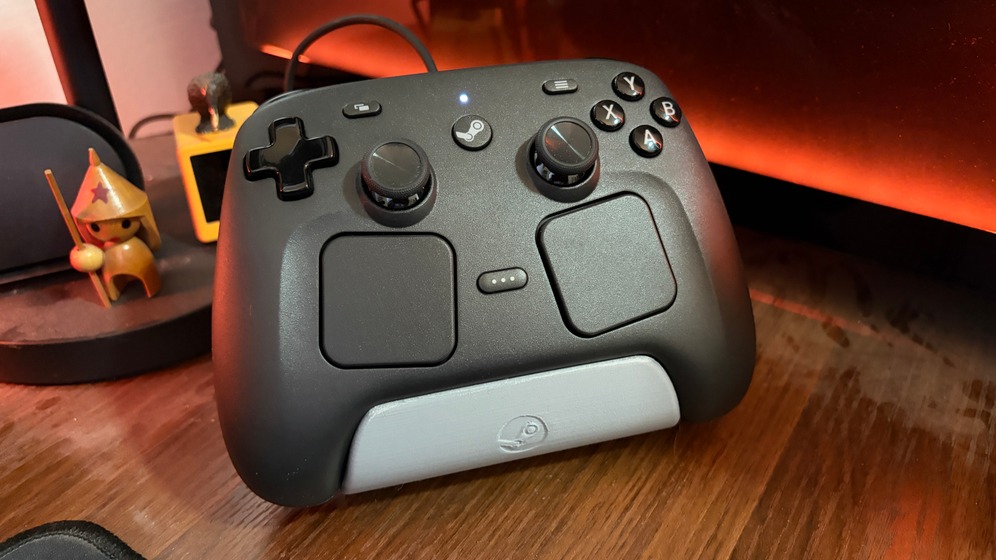
Valve has been and will likely remain one of the best gaming/services companies in the world, mainly thanks to being the owner of the world's largest digital game store, Steam, alongside the line of excellent games it has provided us over the years, including the Half-Life series, the Portal series, and of course the Counter-Strike series. The company's new gaming controller, the Steam Controller, is actually the second generation of this product line, as the company's original gaming controller, which also went by the name Steam Controller, first launched in 2015 and was available on shelves for 4 years before its production was completely discontinued at the end of 2019. Valve's return to the hardware market is considered fairly successful in many people's eyes (with the Steam Machine as a glaring exception, mainly due to its high price), whether we're talking about the Steam Deck product line that brought a significant rise in the PC Handhelds market or the Steam Controller of 2026, which has already received plenty of praise and positive reviews even before my review. So yes, if it wasn't clear to you yet, I also think this controller is simply excellent (so excellent that I 3D printed a stand for it!).
Design School
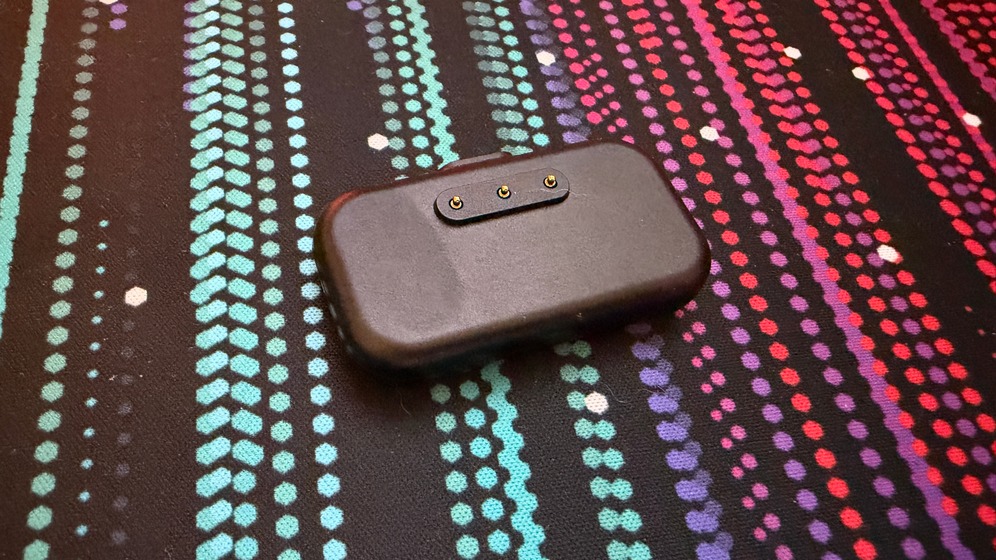
As befits a product that provides a quality experience, that quality starts with the controller's packaging, which is beautifully designed. Alongside the controller itself, we also get its dedicated charging and pairing unit (called the "Puck"), along with a USB cable for connecting the Puck to the computer. You can also connect the controller directly to the computer with the same cable. From the first moment I held the controller, I understood this was a quality product - the controller's finish feels great in hand thanks to the textured surface adorning the main parts of the controller, providing a good and comfortable grip feel over many hours of gaming. The button placement (and there are many of them) also feels great overall (even though these aren't standard button placements), and generally it's hard for me to say I'm not satisfied with the finish, overall appearance, and feel that this controller provides long before I started playing with it. The controller's overall weight is also good in my opinion, even though it's heavier relative to other controllers (it weighs about 292 grams, while the XBOX controller weighs 280 grams, for example). Beyond weight, it's important to know this is also a controller that will be considered slightly larger relative to classic controllers, but even here this isn't necessarily a bad point if you ask me. As mentioned, you'll connect the controller to the computer either wired or via the Puck, which you can also use to charge the controller by placing the controller on it. It's important and very worthy to note that there's also full support for connecting the controller to other devices via Bluetooth.
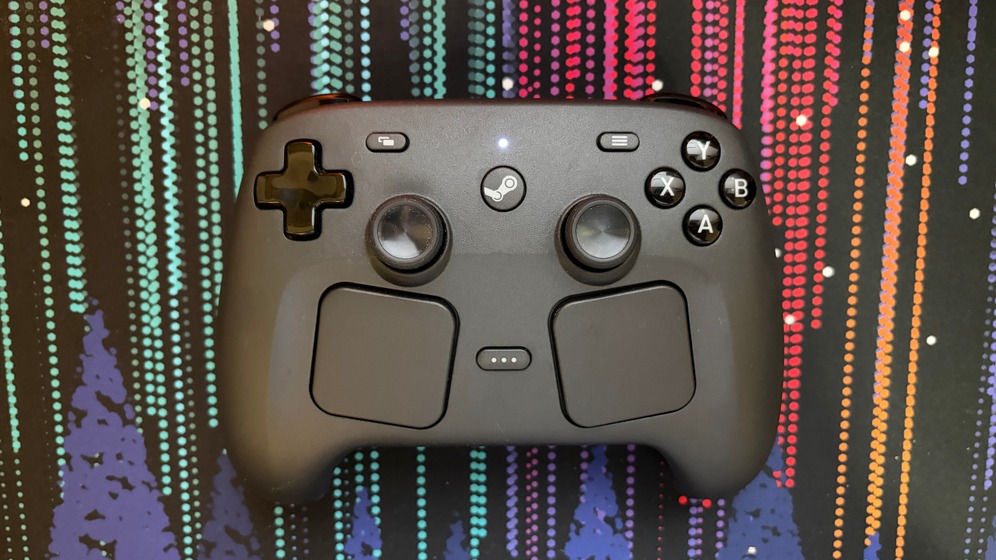
Let's dive a bit deeper and start of course with the controller's joysticks, and to my great joy, these are TMR-type magnetic joysticks. For those less familiar, TMR is essentially a type of joystick considered much more quality and accurate relative to "regular" gaming controller joysticks, alongside the fact that it also significantly reduces the chance of the joystick "suffering" from the infamous Drift disease thanks to using magnets instead of analog parts that wear down over time (the magnet can also wear down, but it takes significantly more time). Alongside the controller's joysticks, we get its other buttons, with a full D-Pad on the left side (exactly as a D-Pad should be) while on the right side we find the letter buttons positioned similarly to how the letter buttons are positioned on the XBOX controller. In the center of the controller is a button decorated with the Steam logo that serves to turn the controller on and off (pairing is done via the Puck which we associate with the controller on first power-up), and next to it are two dedicated buttons (Start and Select) that receive different uses depending on the game/action we want to perform.
At the bottom part of the controller is another central button that also serves for various settings, and on both sides of this button are of course the controller's two touchpads - those of you who own a Steam Deck should know what the impressive capabilities of these two touchpads are, but broadly speaking, these are touchpads capable of, among other things, simulating the action of a regular computer mouse, which allows the Steam Controller to provide a controller-based gaming experience even with games that were less adapted (or not adapted at all) for controller play - this is the main unique feature of this controller, and personally (and as someone who really loves these pads from the Steam Deck), this is in my view one of the smartest and best decisions Valve could provide us with this controller.
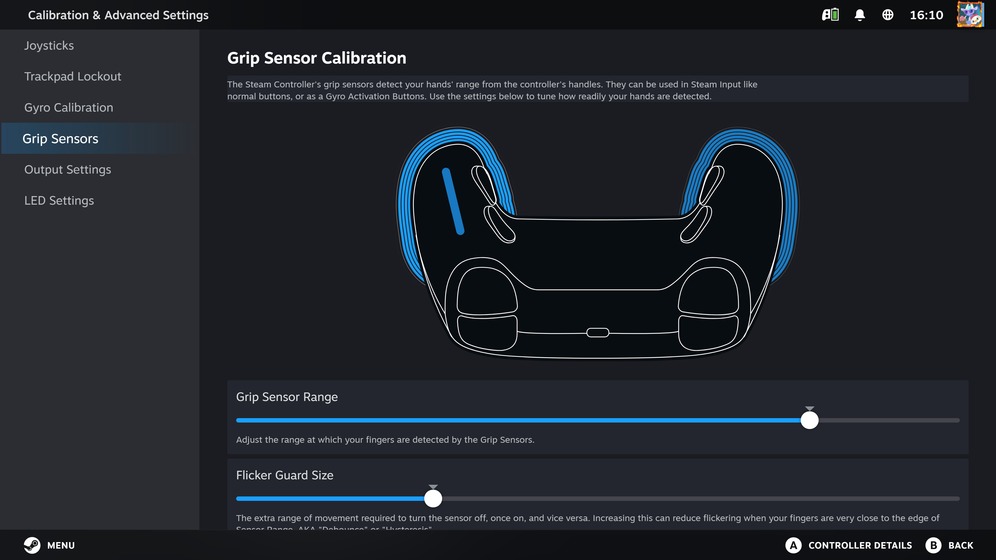
If all these buttons weren't enough for you, then of course it's important you know that on the top part of the controller you'll find of course 4 shoulder buttons (two on each side), alongside four additional buttons you can find on the back part of the controller, which you can customize according to your needs in each of the games you play. Those shoulder buttons unfortunately don't support features like the DualSense controller's Adaptive Triggers, so if you're used to these capabilities and enjoy them during your gaming, it's important you know that here there's no support for these kinds of features at all. The controller also supports Gyro which allows you to perform various actions in games through physical movement of the controller in space (there's an option to program the controller so the Gyro simulates mouse movement, for example), and it even has the ability to detect your grip level on it to a degree that will allow you to activate a certain action in-game if you choose to assign it to a certain grip level (yes, it's that cool). There are also built-in rumble motors in the controller, but unfortunately they don't come close in any way to the impressive rumble capabilities of other controllers like the Pro Controller 2, for example, which gets much better rumble performance thanks to Nintendo's HD Rumble motors.
Just Me and My Controller
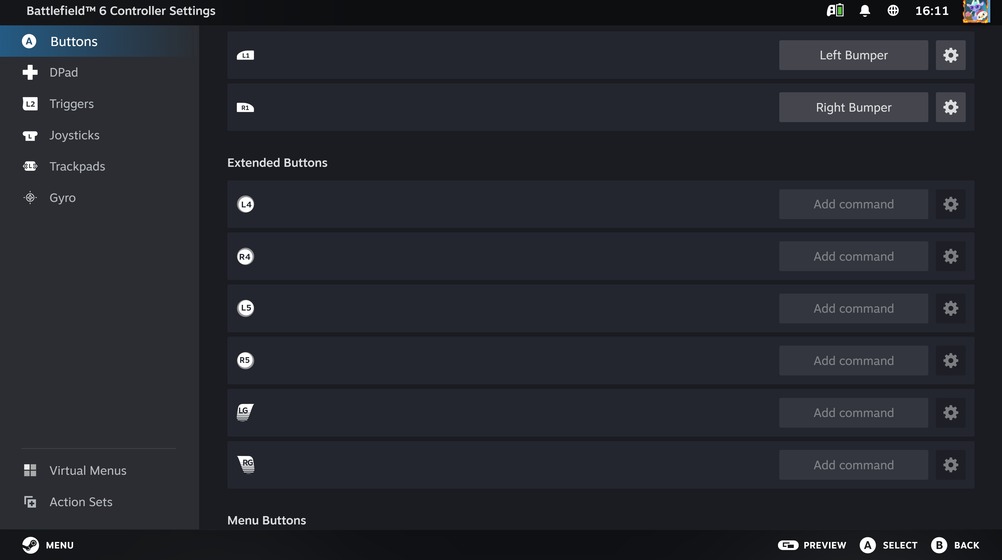
I mentioned at the end of the previous section the fact that you can customize the back buttons of the controller, but the truth is this customization is also relevant to every other element of the controller thanks to its full interface capability with Steam, which will allow you to customize every element you can think of with this controller. Through Steam you can control, for example, the controller's button mapping in a way that's customized at the game level, which will allow you, for instance, to map the controller's buttons so they function one way with one game, and in a completely different way with another game. Additionally, you can also control the controller's own settings, from the way it functions regarding the joysticks' "Deadzone" through the sensitivity level of the grip sensors and how they operate and many more good things. However, with all this goodness comes of course the clear understanding that's important to pay attention to - the impressive capabilities of this controller are only enabled when using Steam, and unfortunately this is also relevant to everything concerning the controller's software updates, which means if you planned to use this controller with other platforms that aren't a PC using Steam as its main gaming platform, I'm sorry but your experience simply won't be complete without relying on Steam, just as your experience won't be complete if you decide to connect AirPods to an Android-based phone, for example. Also, it's important you know that you can access the controller's settings even when using Steam's classic software interface and directly from the software's settings window (here in the review I photographed images from Steam's full-screen interface).
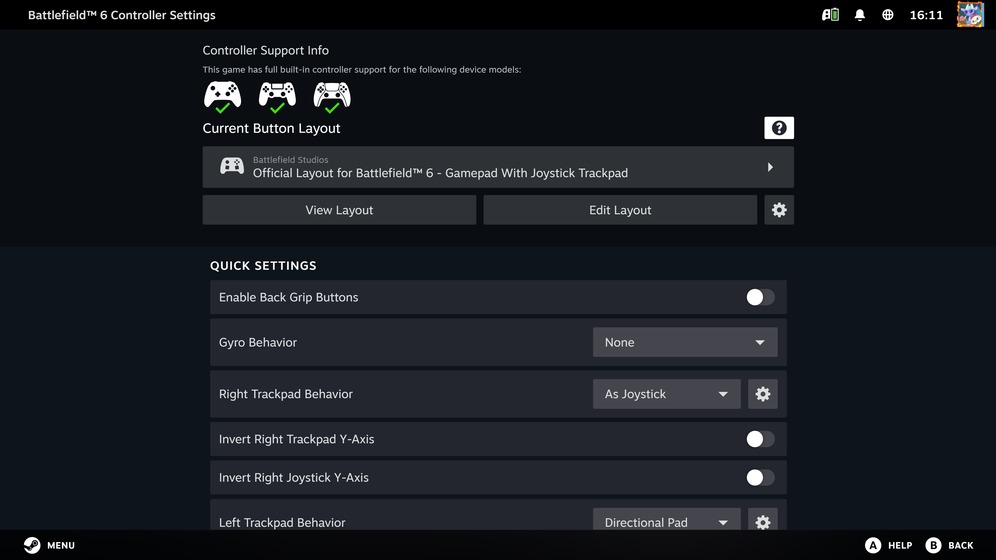
Alright, we've talked enough theory, time to get practical - how does the gaming experience feel with the Steam Controller? Well, in one word? Great. Over the past month I got to test quite a few games in which I used the controller, from intensive shooting games like Battlefield 6 through single-player action games like Control to calm games that don't include too many complex systems like ReStory: Chill Electronics Repairs, which became my new addiction in a way that didn't surprise me at all - that's actually a great example of a game that in principle wasn't designed to provide a controller-based gaming experience that gets a great experience when using the Steam Controller, mainly thanks to the simply excellent touchpads we have here. I was also very satisfied in the battery life department, as in principle I didn't even need to worry about battery life thanks to the fact that, as mentioned, the Puck that comes with the controller serves both as its pairing unit to the computer and as a magnetic charging surface, which allowed me to finish a gaming session, easily place the controller on the surface and thereby know that the next time I play, a charged and ready controller will always be waiting for me - of course I still checked the controller's battery life, and here too the result is particularly impressive - an average of about 30 hours between charge and charge, but this of course varies according to your personal usage habits.
I'll finish this review with a few words about the controller's price. As of writing these lines, if you meet the requirements that Valve sets before purchasing the controller, you can buy yourself a Steam Controller for a cost of 99 dollars - a price considered high relative to the major competitors' controllers (for comparison's sake, the DualSense for example costs about 75 dollars today). In my view, this isn't a crazy price addition (especially relative to the amount of features this controller can provide), and it's completely worth it if you're like me and spend long hours of gaming on the PC using Steam - I'm a PC gamer the vast majority of the time (I own consoles mainly for exclusive games), so for me this was a natural upgrade to my gaming experience.
The Bottom Line
The Steam Controller is an excellent gaming controller, and even though it relies heavily on the need to use Steam in order for you to properly enjoy its various capabilities, even if we compare it to other controllers, this is a quality product comfortable for use even if Steam isn't your main gaming platform, as long as you're aware of the limitations that come with this requirement. Valve's return to the hardware market continues to prove successful, now it remains to be seen what it will provide us going forward, hopefully the quality level, and also the general availability of its products worldwide, will be easier and more convenient.